|
|
| (3 intermediate revisions by the same user not shown) |
| Line 14: |
Line 14: |
| | | | |
| | === Refresh === | | === Refresh === |
| − | FXLData no longer uses the normal Excel calculations in Microsoft 365. As a result, if a change is made as described here [[Refresh - FXLData#Refresh| Refresh article]] a manual refresh is necessary.
| + | This article can now be found [[FXLData_Refresh|here]] |
| − | | |
| − | The Refresh option is no longer restricted to older versions of Excel, the options available are detailed [[Refresh - FXLData#Office 2010-2019 Excel and Microsoft 365 Excel working in legacy Mode|here.]]
| |
| − | | |
| − | Note that if the formula itself is deleted, you will also need to delete any returned data.
| |
| | | | |
| | === Diagnostic Tool === | | === Diagnostic Tool === |
| − | This feature has been introduced to help Regnology diagnose any issues encountered when using FXL Data. By default, the feature is switched off. When required, two options are available which supply different levels of detail. When the tool is enabled a log file will be created. | + | This article can now be found [[FXLData_Diagnostics| here]] |
| − | | |
| − | [[File:Diagnostic tool.png|1000px]] | |
| | | | |
| | == FXLData Wizard == | | == FXLData Wizard == |
| Line 38: |
Line 32: |
| | ===Rest Arguments=== | | ===Rest Arguments=== |
| | | | |
| − | The Wizard (available from the FXL Data tab) now includes a button to select the Rest Arguments Builder. Which can be used to specify additional SDMX query arguments that are not available through other options in the User Interface, such as round=2 for rounding numeric values. It is intended for the advanced user who needs finer control over the query behaviour.
| + | This article can now be found [[Rest_Arguments_Builder|here]] |
| − | | |
| − | [[File:Rest-argument-builder-button.png|1000-px]]
| |
| − | | |
| − | To use the Builder, select a dataflow and then click on the Builder button.
| |
| − | | |
| − | Click the button to access the builder.
| |
| − | | |
| − | [[File:Rest-argument-builder.png|1200-px]]
| |
| − | | |
| − | '''Apply Button'''
| |
| − | | |
| − | When the Apply button is pressed in the REST Arguments Builder, it performs the following action:
| |
| − | | |
| − | * It populates the REST Args box on the main Wizard screen with the constructed query string based on the enabled and valid arguments.
| |
| − | * It does not execute the FXLData function or retrieve any data at this stage.
| |
| − | * To actually run the query and fetch data into Excel, the user must return to the Wizard screen and press its Apply button.
| |
| − | This separation ensures the user can review and finalize their full query setup before triggering data retrieval.
| |
| − | | |
| − | ====Interaction with the Wizard====
| |
| − | '''Existing Arguments'''
| |
| − | | |
| − | If the wizard already contains rest arguments when the Builder is opened, it will attempt to interpret and reconstruct the existing argument as accurately as possible.
| |
| − | | |
| − | [[File:Rest-arguments-box.png|1200-px]] | |
| − | | |
| − | '''Arguments handled via the Wizard'''
| |
| − | | |
| − | * startperiod
| |
| − | * endperiod
| |
| − | * max
| |
| − | * time-format-frequency-id
| |
| | | | |
| | === Other point to note === | | === Other point to note === |
| Line 91: |
Line 54: |
| | === Refresh === | | === Refresh === |
| | | | |
| − | Thhis article can now be found [[FXLData_Refresh|here]]
| + | This article can now be found [[FXLData_Refresh|here]] |
| − | | |
| − | FXLData no longer uses the normal Excel calculations in Microsoft 365. As a result, if a change is made as describe here [[Refresh - FXLData#Refresh| Refresh article]] a manual refresh is necessary.
| |
| − | | |
| − | The Refresh option is no longer restricted to older versions of Excel, the options available are detailed [[Refresh - FXLData#Office 2010-2019 Excel and Microsoft 365 Excel working in legacy Mode|here.]]
| |
| − | | |
| − | Note that if the formula itself is deleted, you will also need to delete any returned data.
| |
Since the last main release of FXL Data in July 2024, a number of changes and enhancements have been introduced. The changes address several issues identified by users including, to stablise the product, removing the difference between using the Legacy Mode features (these catered for users who used Microsoft Excel 2010-2019) and those using subsequent versions i.e., MS Office 365 and incorporating a number of great new features.
Some of these changes were made available via an optional Hot fixes but the Release of R1.3 brings all the changes together and includes a useful new feature as well as various bug fixes.
A summary of all the changes can be viewed in the Change Log Change Log which shows which changes were made in which Hotfix and which are new in R1.3. This page summarises all the main changes as at Version 1.3.
Remember - to use these changes the FXLData add-in must be installed, follow the installation instructions found here.
FXLData Tab
On opening Excel and enabling the latest version of the FX Data add-in, you will see several significant changes on the FXLData Tab within Excel.
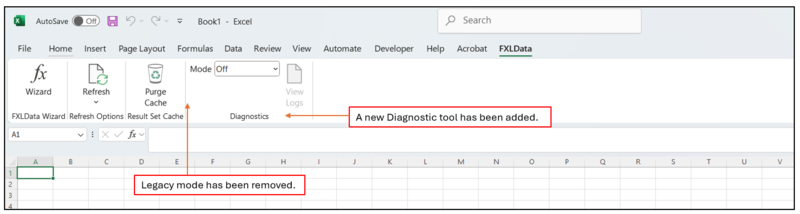
Refresh
This article can now be found here
Diagnostic Tool
This article can now be found here
FXLData Wizard
Dataflow Selection
A new selection box has been added to make it easier to select a dataflow.
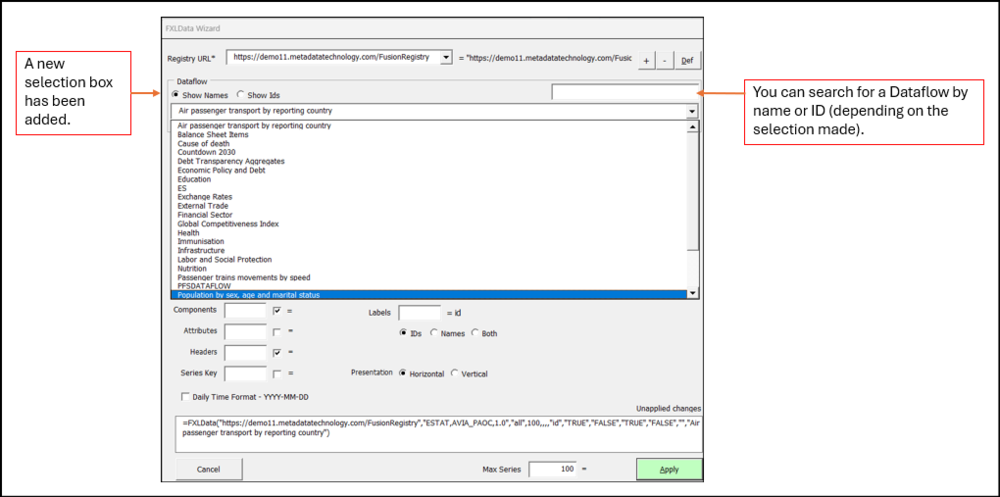
Selecting Items

Rest Arguments
This article can now be found here
Other point to note
Functions
The TimeFormatFrequencyID parameter is now available when using the Functions:
- FXLDataURL
- FXLDataURLV
- FXLDataURLFact
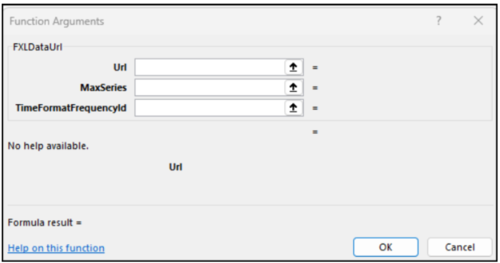
New Functions introduced
These options are available but are currently in beta test.
You can read more in this article.
System Properties
This article can now be found here
Refresh
This article can now be found here


